How-to guides
For parents
Set up your family, follow progress, and decide what you receive and share.
Sign up and give consent
Parents can set up a family account. Teen students need parent approval before their account becomes active.
Step 1 of 2
Open Join free, enter your details and create a password. Tap Confirm my email in the one email we send.
Open this page →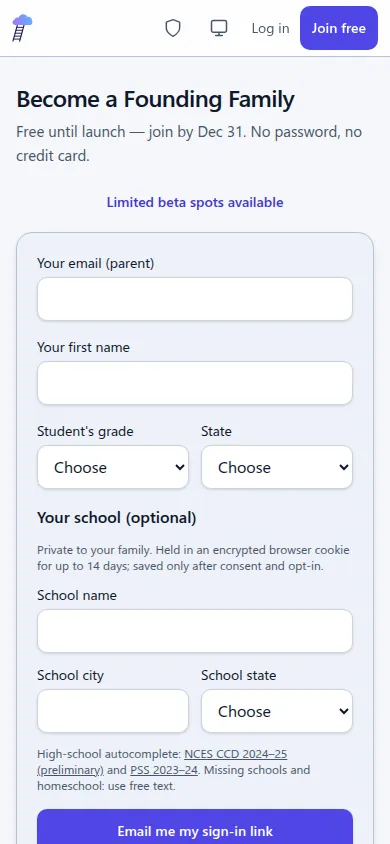
Step 2 of 2
Complete your setup. If a teen requests approval, open their consent link and review the choices.
Open this page →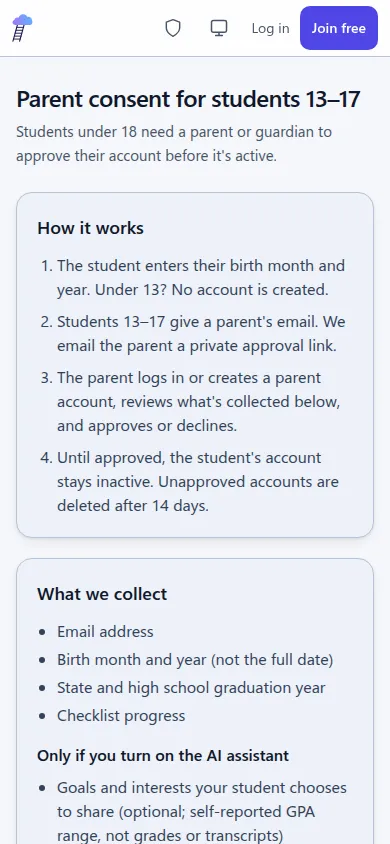
Add or link a kid
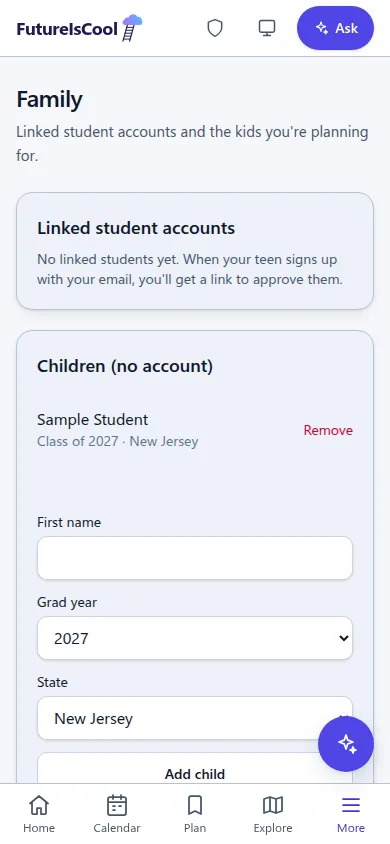
You can add a child without an account. A teen's own account is linked after you approve their request.
Step 2 of 2
For a teen with an account, use the approval link they requested, then open their Family overview.
Open this page →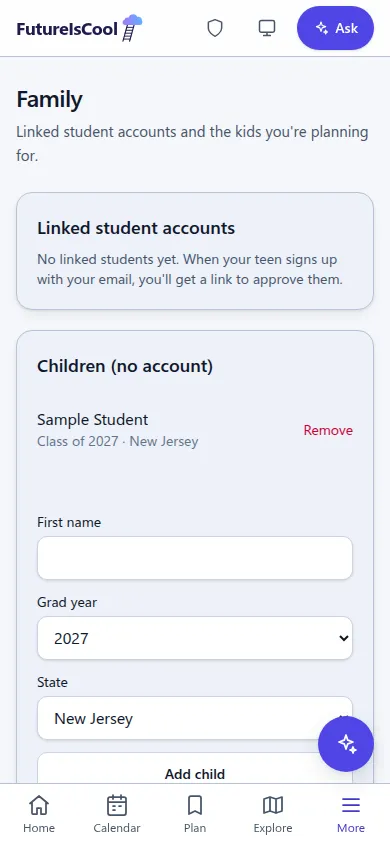
Notifications
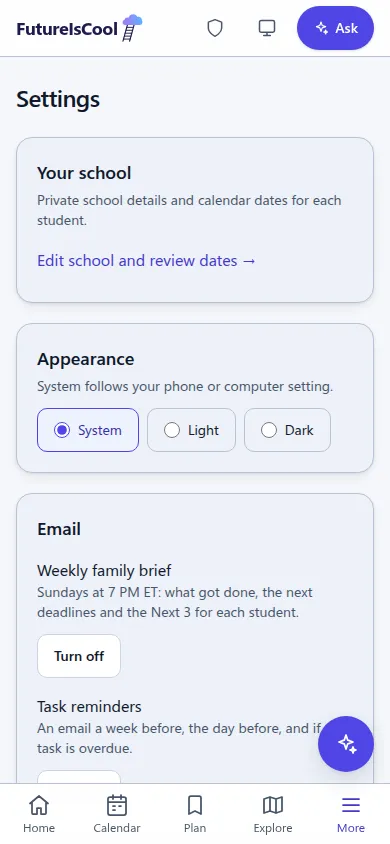
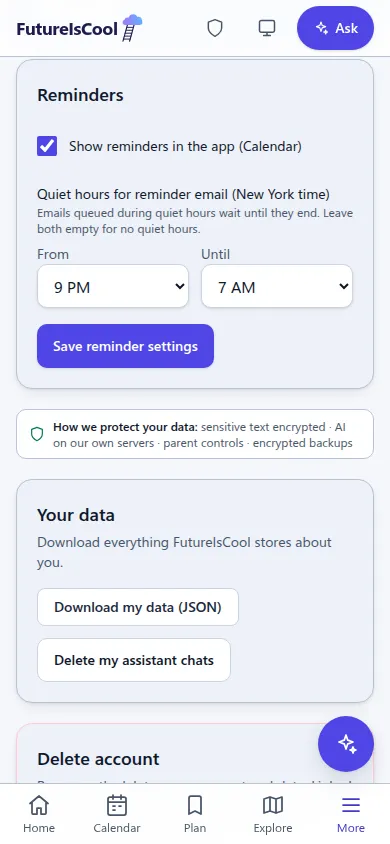
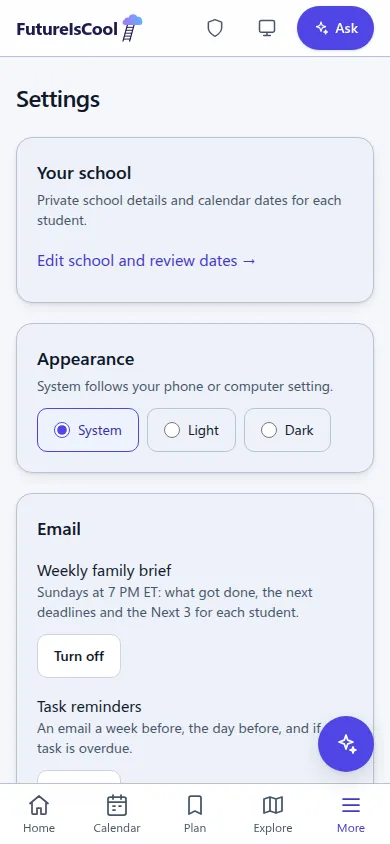
Settings has account-wide switches for the weekly brief and task reminders, plus in-app reminders and quiet hours. Per-kid choices are coming soon.
Check this week
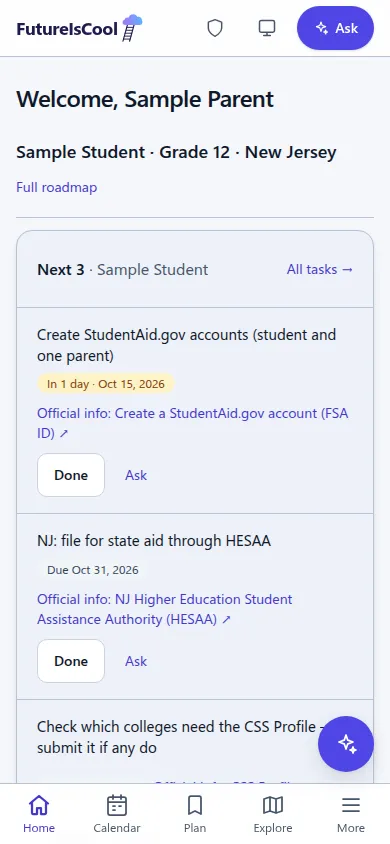
Ask the assistant how your kid is doing this week, then review the next tasks on Home.
Step 2 of 2
Ask the assistant “How's my kid doing this week?” for a summary of available progress.
Open this page →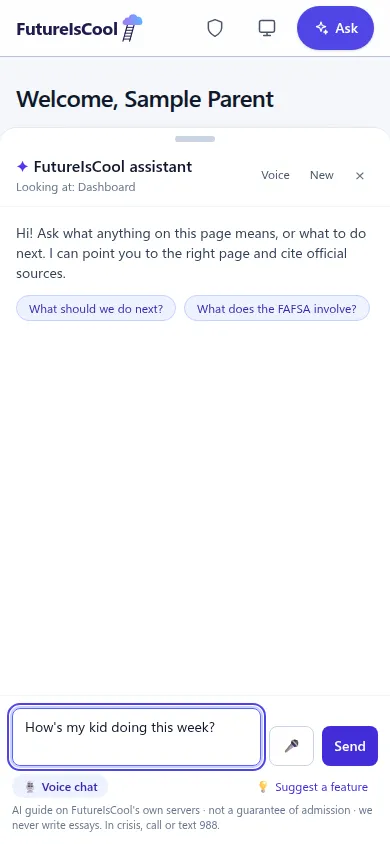
Financial aid
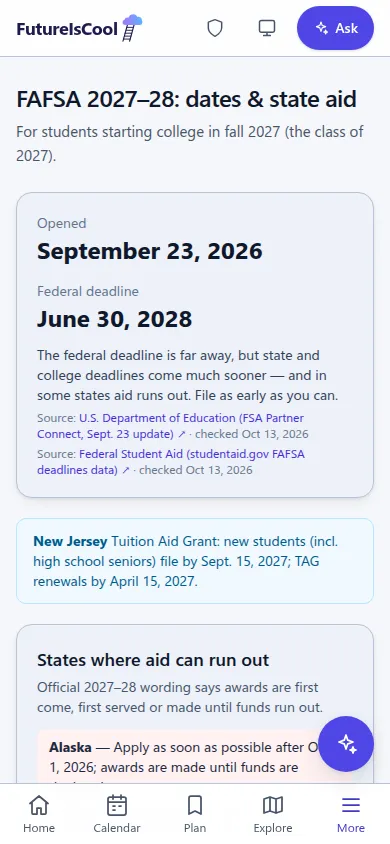
Use the FAFSA and state-aid guide, then confirm dates and requirements with the official source.
Step 2 of 2
Follow the official links to confirm the current deadline and requirements.
Open this page →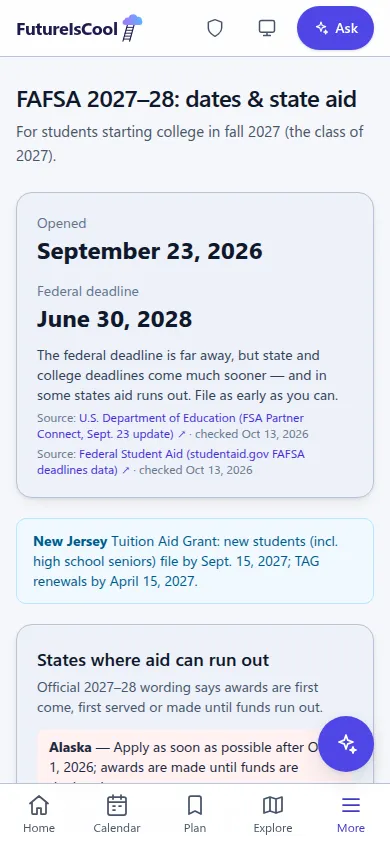
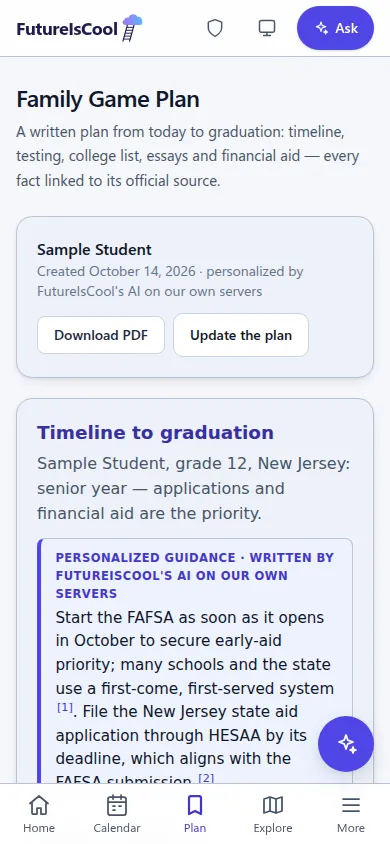
Family Game Plan
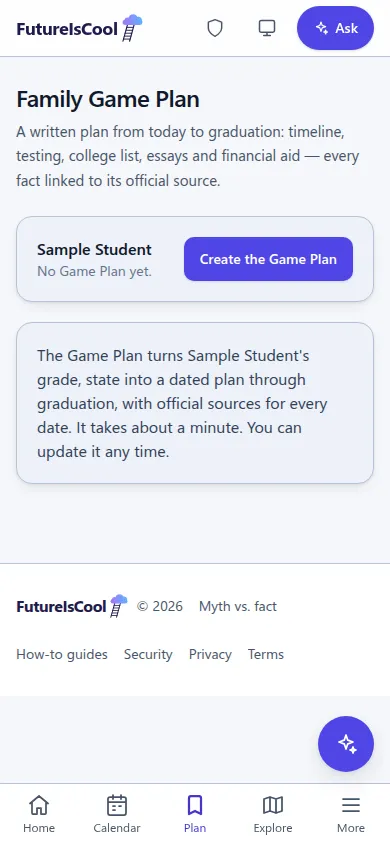
Create a written plan from your child's grade and state, then revisit it as goals change.
See school tasks
If your student joined through their school, you can see what the counselor assigned and what's done. This view is read-only.
Step 1 of 1
Open Your school from More, then the School tasks tab. Each linked student shows their school and tasks.
Open this page →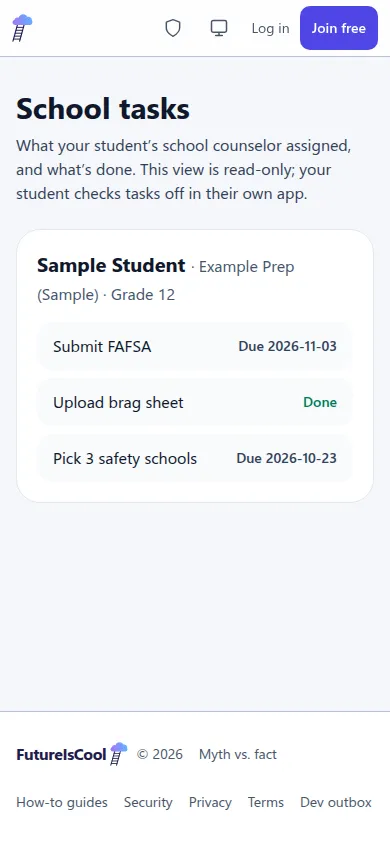
If your school sponsors you
When your student's school pays for FutureIsCool, your family gets Premium free while your student stays linked, and you'll see "Sponsored by" with the school's name. Already paying? We refund the paid time you haven't used yet, prorated, and pause your billing, so you never pay twice. When the school's sponsorship ends, your own plan does NOT restart by itself. We email you once, on the end date, with one-tap Continue and Cancel buttons, and the app shows a banner until you choose. You can restart with one tap any time from Settings → Your plan. While a school sponsors you, its counselors can see a log of the messages we send your family: subject, date and who was copied, never the message itself. If your family pays and the school doesn't, that log stays hidden unless a parent turns it on in Settings → Counselor message log.
Step 1 of 4
Your student joins with the school's link or QR code. The page names the school and counselor and explains who can see messages.
Open this page →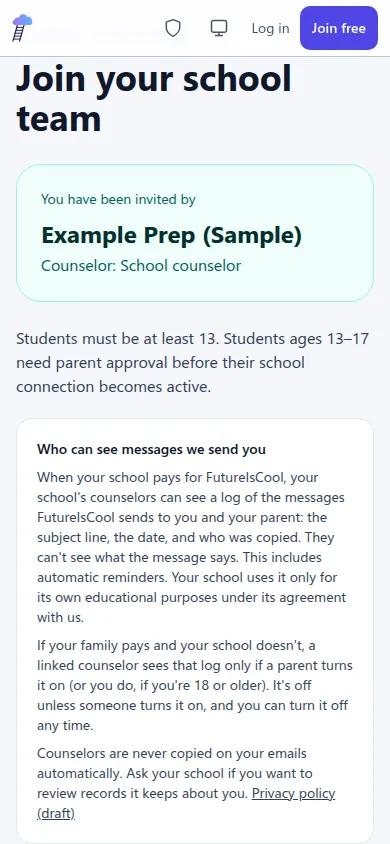
Step 2 of 4
Read "Who can see messages we send you" in the Privacy policy, section 7.
Open this page →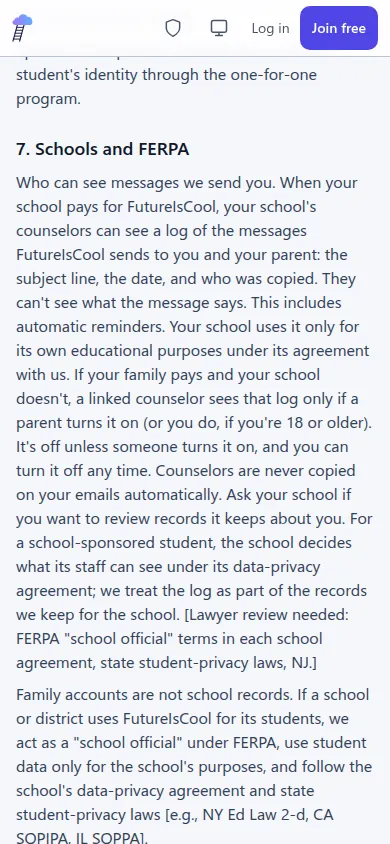
Step 3 of 4
When the sponsorship ends, a banner asks you to choose. Tap Continue to keep your plan at the price shown, or Cancel. Nothing is charged until you tap Continue.
Open this page →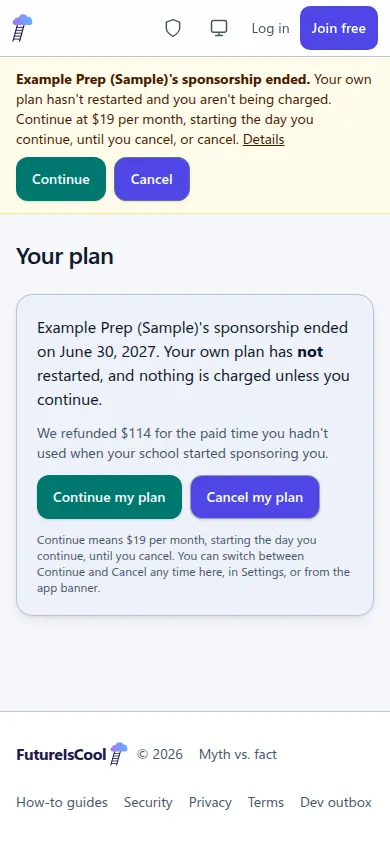
Step 4 of 4
Settings → Your plan shows your refund and lets you switch between Continue and Cancel any time. The link in the end-date email opens the same choice without signing in.
Open this page →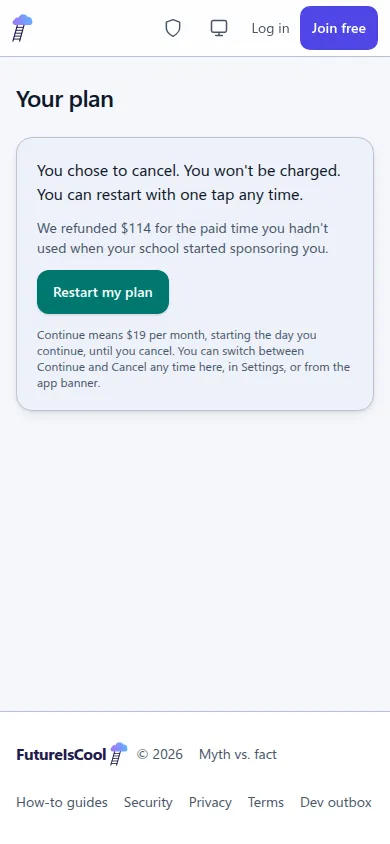
Let your counselor see messages
If your family pays (not the school), you decide whether your student's school counselor can see the log of messages FutureIsCool sends you: subject, date and who was copied, never the message. It's off until you turn it on. For students under 18 the parent decides; adult students decide for themselves.
Step 1 of 1
Open Settings → Counselor message log. Each linked student shows On or Off. Tap Turn on or Turn off. Sponsored students show the school's rule instead.
Open this page →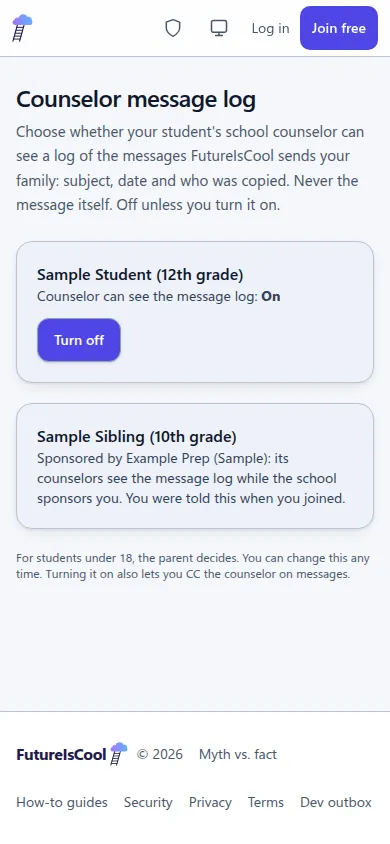
Delete data
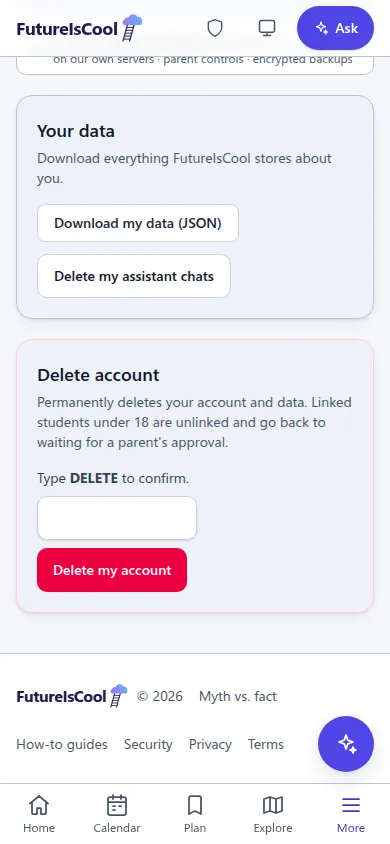
Settings lets you delete your own assistant data or account. Family controls also let parents delete a linked student's account.
Step 2 of 2
Choose assistant data or account deletion and follow the confirmation on screen.
Open this page →